Gateways Configuration Guide
This tutorial guides you through the process of adding and configuring a gateways in The Things Stack.
Creating a New Gateway
- On the Home tab, click Register gateway.
- If you are on a different tab, click the blue + Add button in the top right and choose Add new gateway.
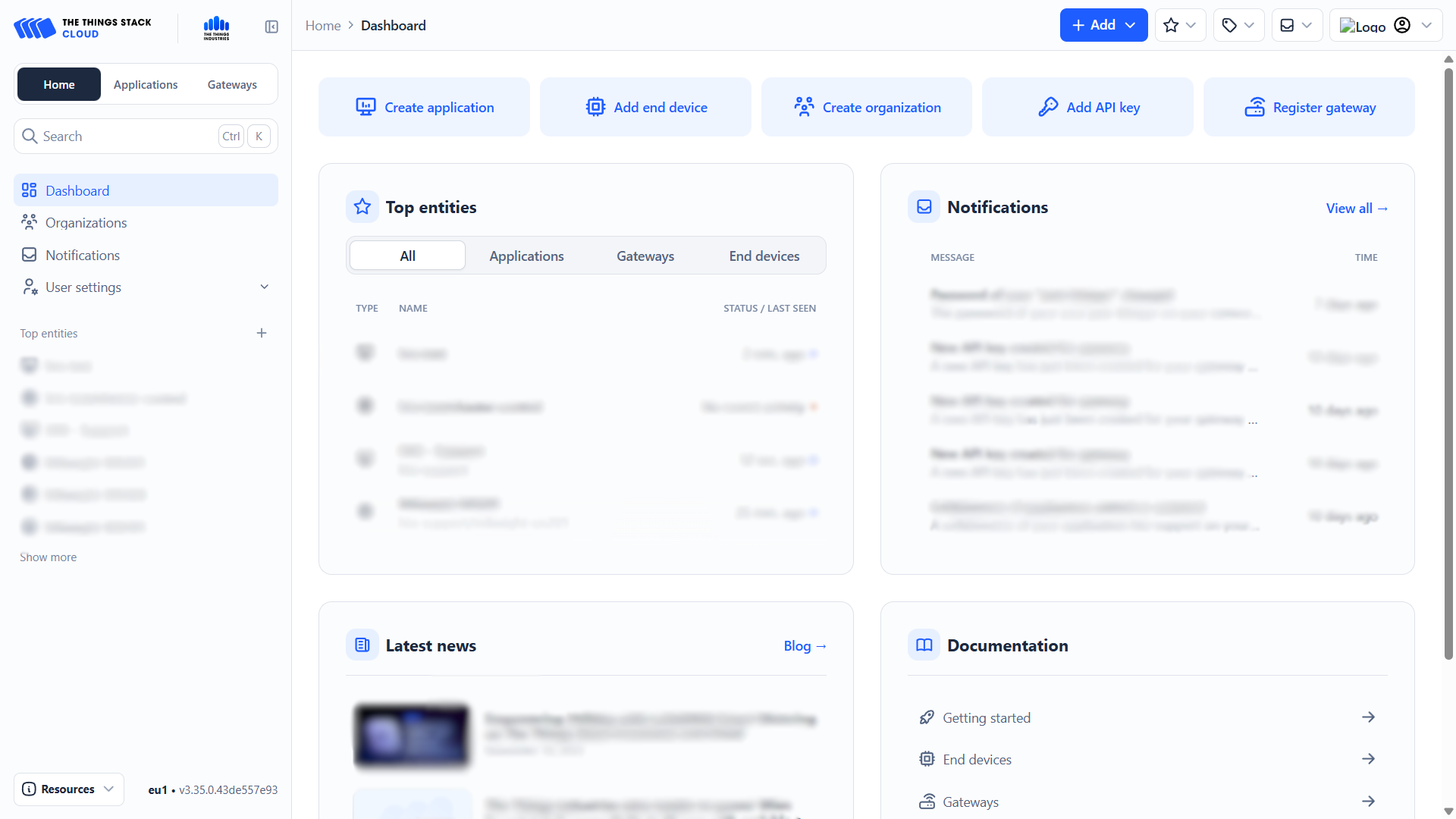
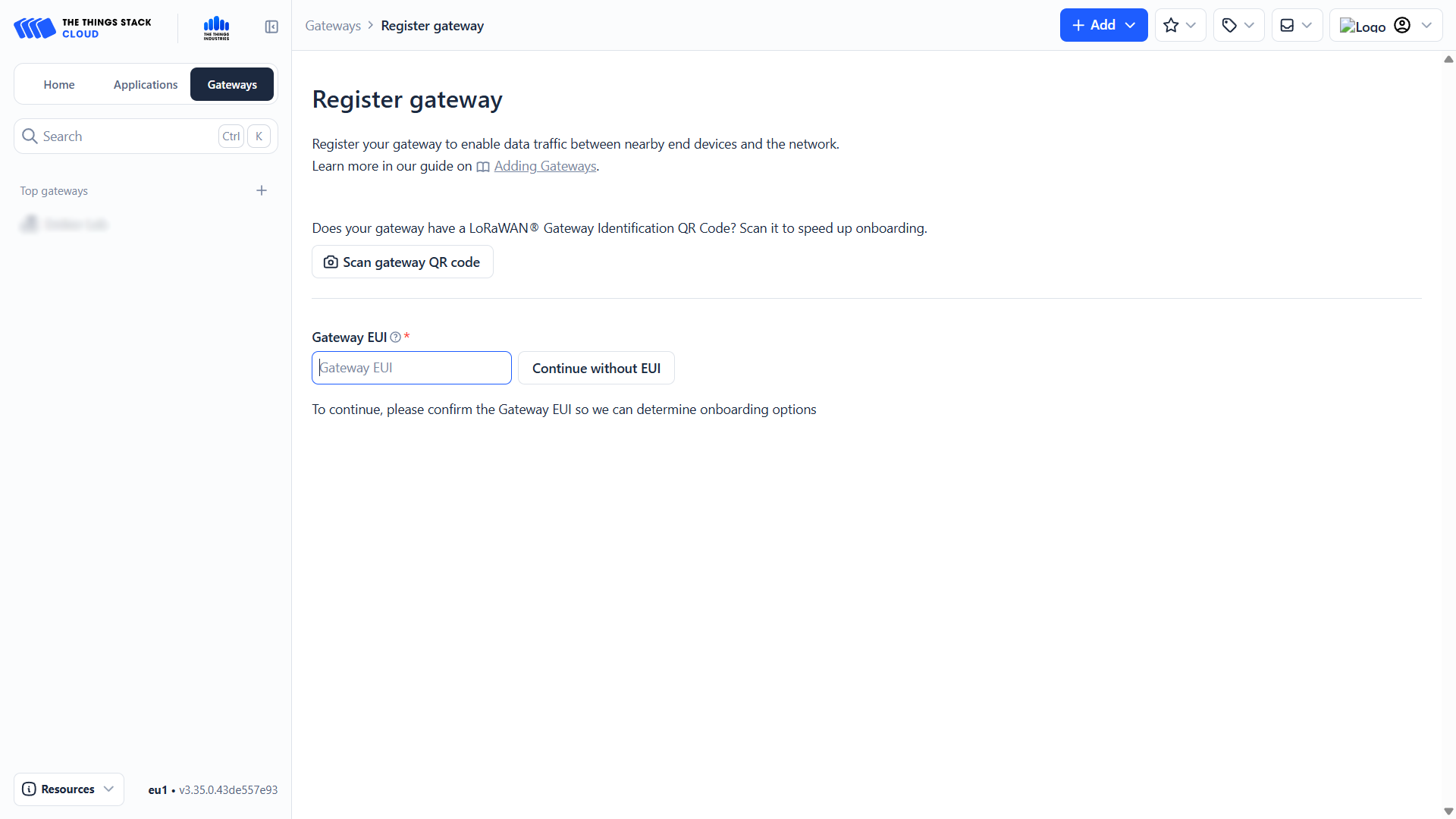
- You will be redirected to the gateway registration page.
- TTS will first request the Gateway EUI (use RouterOS Gateway ID).
- You can find the Gateway EUI printed on your physical gateway.
-
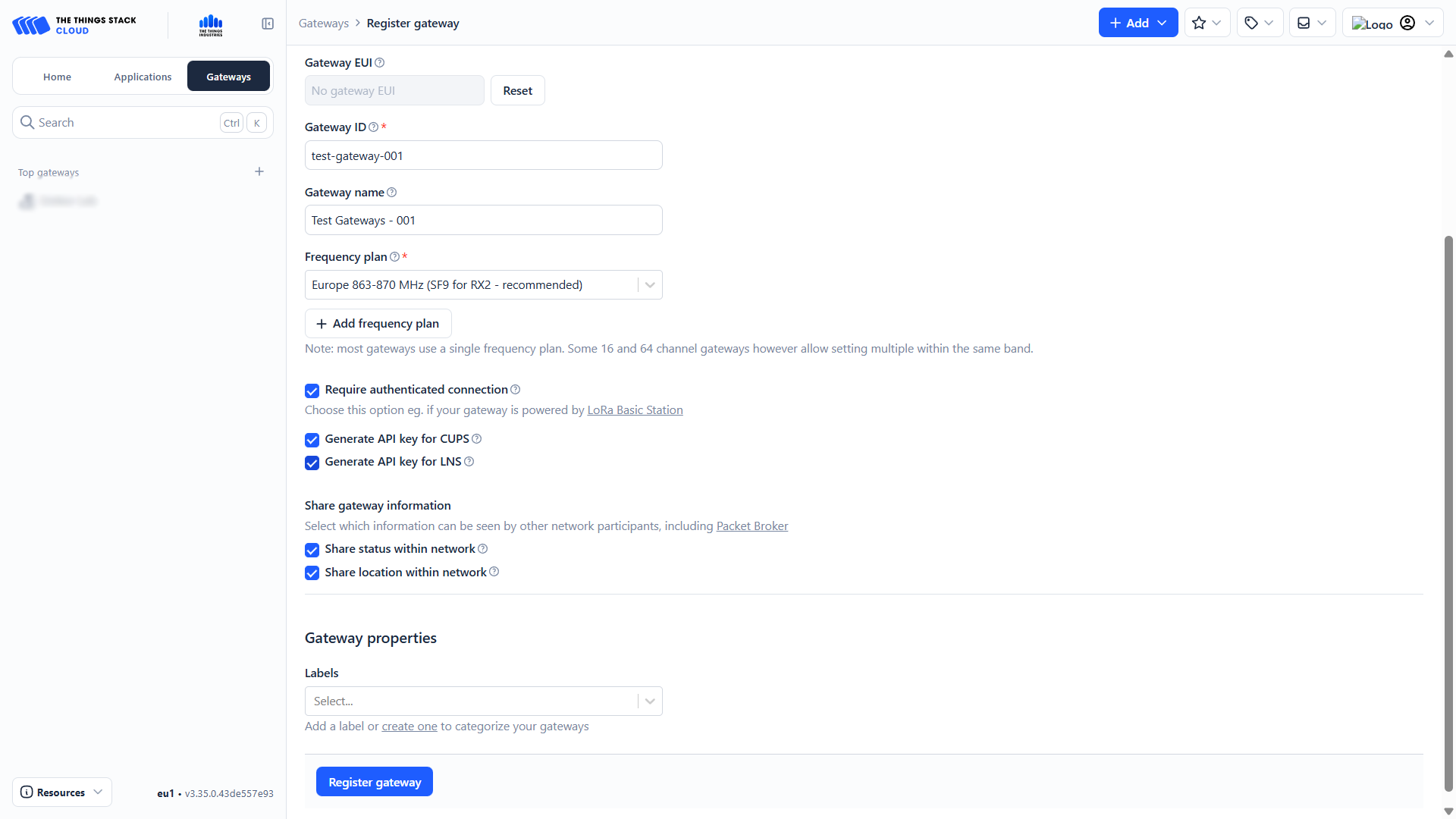
After entering the Gateway EUI, fill in the following fields:
- Gateway ID ( Your chosen identifier for the device → example: test-geteway-001)
- Gateway Name (Your chosen name for the device → example Test Geteways-001)
- Frequency Plan → select Europe 868.1 MHz
- (Optional) Label
-
Check the box Require authenticated connection.
-
Enable the following:
- Generate API key for CUPS
- Generate API key for LNS
-
Click Register gateway.
Downloading API Keys
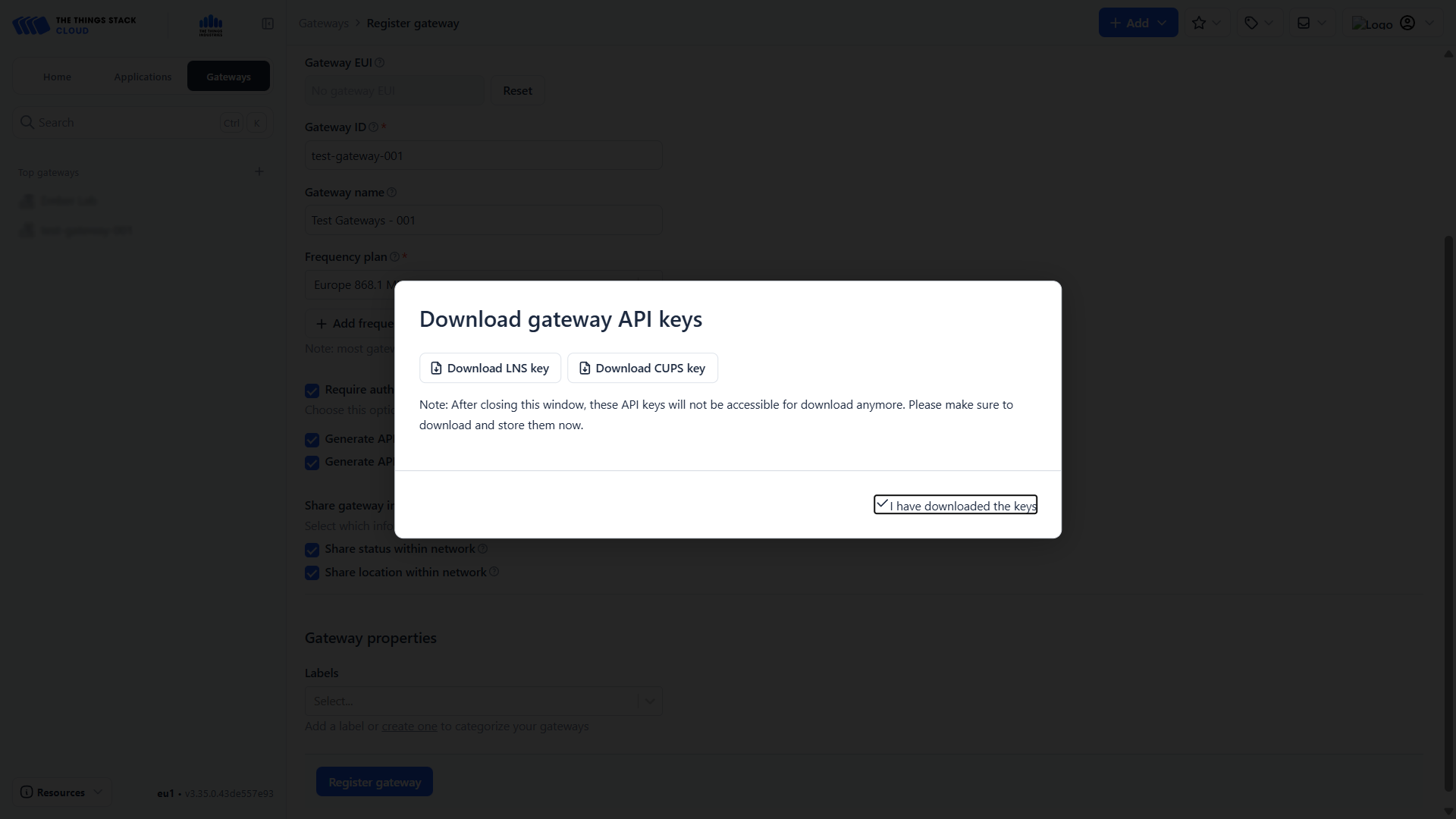
A window titled Download gateway API keys will appear.
- Download both API keys (CUPS & LNS).
- Store them in a secure and reliable location on your computer.
- Do not share them with anyone.
These keys are required when configuring the gateway interfaces (see the documentation for your specific gateway under the LNS & CUPS section).
After downloading:
- The window will close automatically, or
- Click I have downloaded the keys.
Gateway Ready
Your gateway is now ready to use, and you can begin connecting individual end devices.
Removing Gateway
When deleting a gateway in The Things Stack, its Gateway ID is not fully removed from the server. Even though the gateway disappears from the console, the ID remains reserved in the backend.
This means it is not possible to create a new gateway with the same ID unless the ID is manually released.
Only a system administrator has the rights to free or purge the gateway ID from the server.
For regular users, the only available solution is to create the gateway again using a new, different ID.
Video Tutorial
If you need further assistance or a visual demonstration of the process described in this guide, consult the Video Guide.